 Strangelight Audio
Editor overview
The editor is one canvas with a few controls around its edges. Everything you build lives on the canvas; the controls around it add nodes, manage patches and open panels.
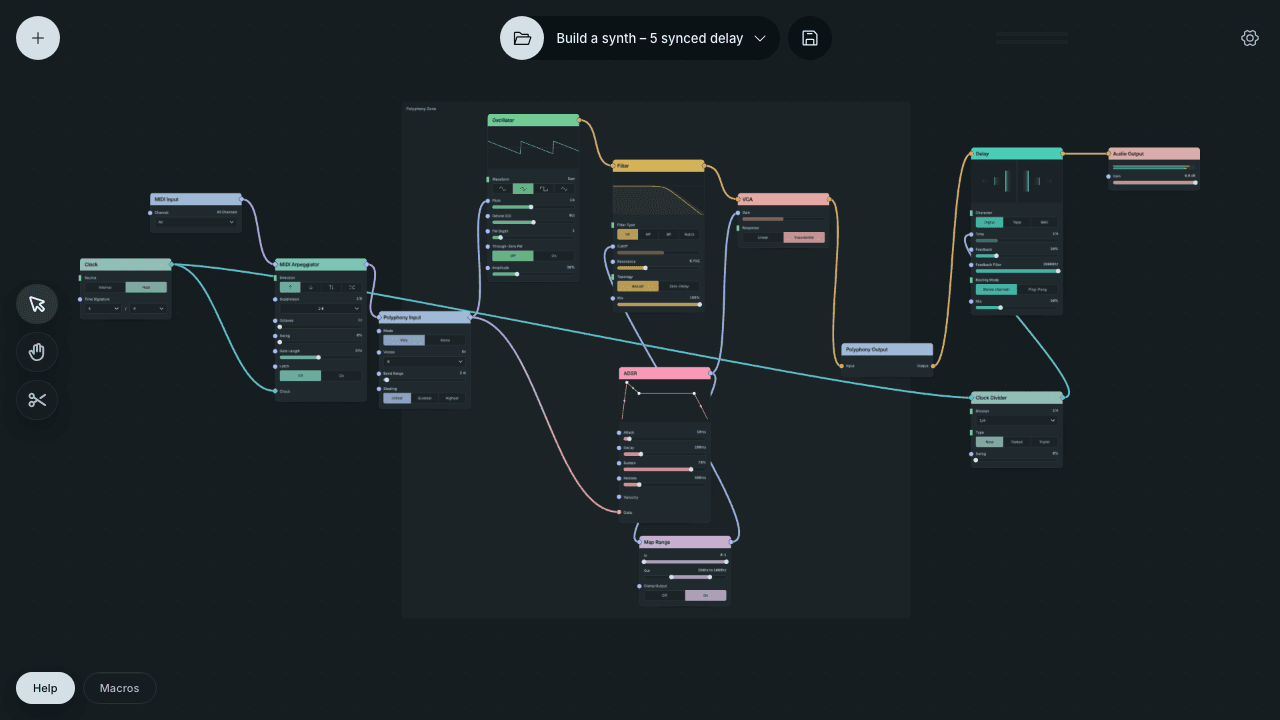
Top of the editor
- Add node (+, top left) opens the node browser: search or browse by category, then click the canvas to place the node. See Editing and navigation.
- Open patch browser (folder icon) opens Load Patch: example patches, your saved patches and Import.
- Patch menu (the patch name) has New, Save Patch As…, recent patches, Other… and Examples.
- Save patch (disk icon) saves the current patch.
- Output meters (top right) show the left and right level Throughline sends to your DAW.
- Settings (gear, Cmd+J or Ctrl+J) holds editor preferences and the full shortcut list.
Save, load and reuse explains what each save option keeps.
Left edge: tools
The tool buttons choose what dragging on the canvas does:
- Select (Q): select, move and connect nodes. This is the usual tool.
- Pan (Option+Shift+H or Alt+Shift+H): drag to move around the canvas.
- Cut (B): drag across cables to remove them.
Bottom left: Help and Macros
- Help shows a short description of whatever is under the pointer: a node, a socket or a cable. For cables and sockets it also shows the signal kind and range. Click Help to turn the descriptions on or off.
- Macros opens the Macros panel along the bottom of the editor: eight dials your DAW can automate. See Macros and DAW automation.
The canvas
Nodes sit on the canvas, connected by cables. A few terms appear throughout this guide:
- A node does one job, such as making a tone or delaying audio. Its title bar shows its name and its colour shows its category.
- Sockets are a node's connection points: inputs on the left, outputs on the right. Many control rows have their own input socket, so a cable can drive that control. See Connections and sockets.
- Controls sit on the node itself: sliders, buttons, menus and, on some nodes, an editable display such as the ADSR envelope.
- A cable carries one signal from an output to an input. Its colour matches the signal kind.
- Frames, Groups and Zones structure larger patches. See Frames, Groups and Zones.
- Breadcrumbs appear at the top of the canvas while you are inside a Group. Click Root to return.
The canvas shows less detail when you zoom out: labels and controls simplify so the structure stays readable. Zoom in to edit controls; the + insertion control on cables appears from 65% zoom.
Menus and the command palette
- Right-click a node, a cable, a Frame, a Zone or empty canvas for actions on that item, such as Create Group, Create Polyphony Zone, Assign Macro or Documentation.
- Shift+A opens the command palette: one search box for nodes and commands such as Create Polyphony Zone or Tidy graph. Settings lists this shortcut as Open node browser.
Help on a node
Right-click a node and choose Documentation to open its reference page. Group and Frame help opens Frames, Groups and Zones; Polyphony Zone help opens Polyphony.
In a DAW
The editor runs inside the plugin window. Your DAW owns the transport, so transport shortcuts are off, and the keys your DAW uses for note input stay free. See Keyboard Shortcuts.