 Strangelight Audio
Frames, Groups and Zones
Throughline has three ways to structure a patch. They look similar on the canvas but do different jobs:
- Frame draws a labelled outline around nodes. It does not change the sound. It stays on the same canvas, and it contains the nodes you put in it.
- Group folds nodes into one node with its own canvas, and can be reused. It does not change the sound. Enter it to edit; breadcrumbs lead back. It contains the nodes you put in it.
- Zone marks a region whose nodes run with special behaviour, so it changes the sound. It stays on the same canvas and is never entered. Cables decide which nodes belong to it.
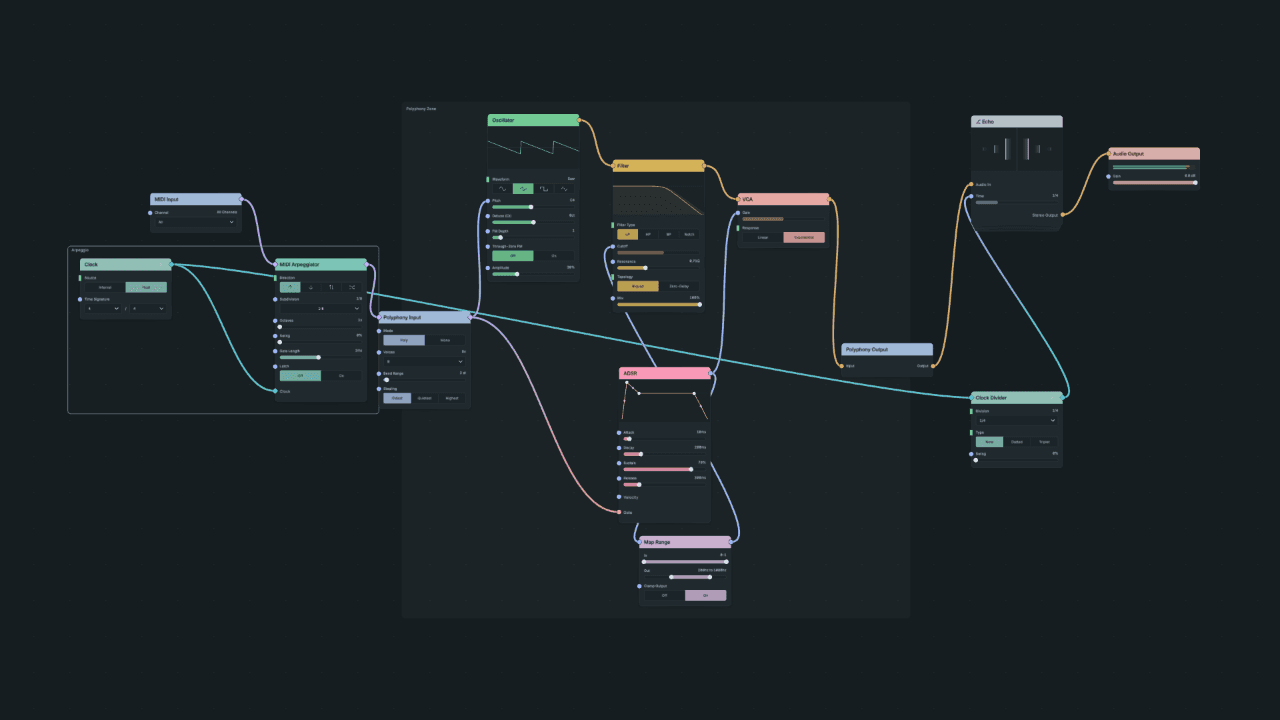
The finished Build a synth patch with a Frame (Arpeggio), a Group (Echo) and the Polyphony Zone.
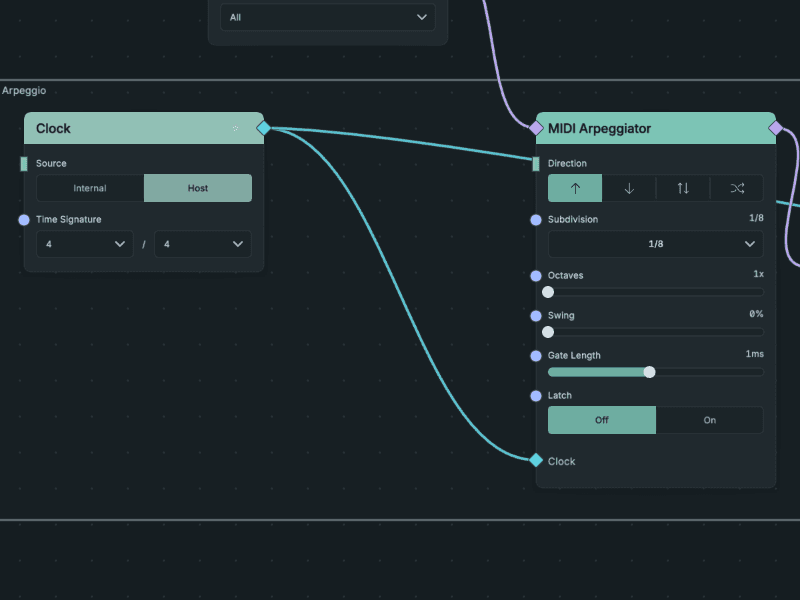
The Arpeggio Frame only outlines its nodes; their cables and controls are unchanged.
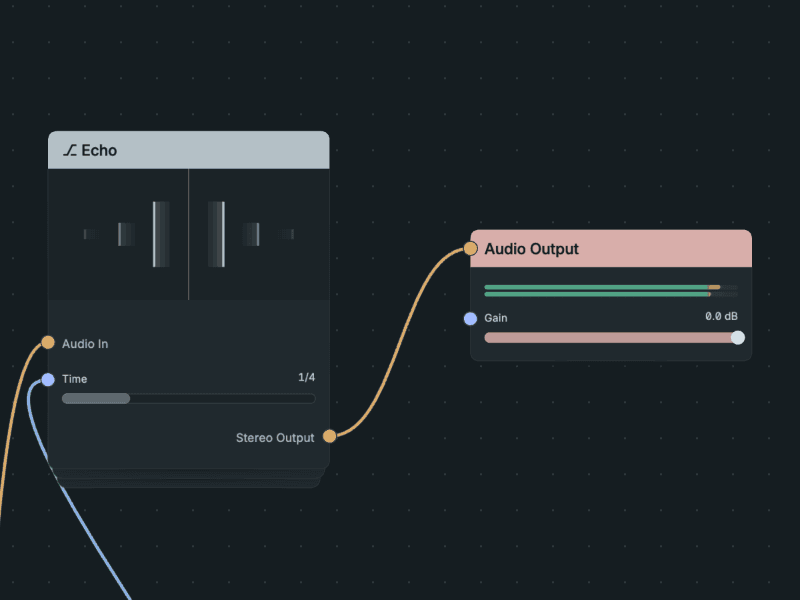
The Echo Group shows one node with the sockets its Delay exposes: Audio In, Time and Stereo Output.
Use a Frame to label part of a patch, a Group to hide detail or reuse a block, and a Zone when nodes need to run differently. The only Zone type is the Polyphony Zone, which runs its nodes once per note.
Frames
A Frame is a visual aid only. It has no sockets, adds no level to the patch, and does not change cables or sound.
- Create: select one or more nodes, then press Cmd+Shift+F (macOS) or Ctrl+Shift+F. Create Frame is also in the right-click menu and the command palette. The Frame also takes in nodes on the cable paths between the ones you selected, so check what it contains.
- Add or remove nodes: drag a node onto the Frame to add it. Right-click a node in the Frame and choose Remove from Frame to take it out.
- Move: drag the Frame's title bar to move it with its nodes. Nodes outside it stay put.
- Rename: double-click the title, or right-click the title bar and choose Rename Frame. Type a name and press Return; press Esc or leave the name empty to keep the old one.
- Delete: right-click the title bar and choose Delete Frame. Only the outline goes; nodes, positions and cables stay.
Renaming and deleting can be undone. Frames work on the root canvas and inside Groups, and are saved with the patch.
Groups
A Group moves nodes onto their own canvas. The parent canvas shows one Group node with the inputs and outputs you expose. Groups organise a patch without changing how it runs.
Create a Group
- From a selection: select two or more nodes and press Option+Shift+G (macOS) or Alt+Shift+G. Create Group is also in the canvas toolbar, the right-click menus and the command palette. Cables between the selected nodes and the rest of the patch are carried across the new Group's boundary.
- Empty: choose Group in the node browser, or, with nothing selected, Create empty Group in the command palette.
A new Group opens straight away so you can edit it. Groups can contain other Groups.
Move in and out
- Enter: double-click the Group node, or select it and press Option+Shift+E (macOS) or Alt+Shift+E.
- Leave: click Root or a parent in the breadcrumbs at the top of the canvas, or press Option+Shift+X (macOS) or Alt+Shift+X.
Rename a Group and edit its colour in the Group inspector.
Connect across a Group boundary
Inside a Group, the Group Input and Group Output nodes each have an add socket:
- Drag from the Group Input add socket to a node's input to expose that input on the Group node.
- Drag from a node's output to the Group Output add socket to expose that output.
Then connect the Group node in the parent canvas like any other node. In the picture above, the Echo Group exposes the Delay's Audio In, Time and Stereo Output.
Duplicate, delete and reuse
Right-click a Group node:
- Duplicate Group makes another copy.
- Delete Group removes the Group and everything in it.
- Save to Library stores the Group in your Local Library, so you can add copies to any patch from the node browser's Local Library. Edit a placed copy by entering it. See Save, load and reuse.
Zones
A Zone is a region whose nodes run with special behaviour. Its nodes stay on the canvas you are working on: you never enter a Zone, and it never appears in the breadcrumbs.
Zones differ from Frames and Groups in one important way: cables, not position, decide membership. A node belongs to a Zone because of how it connects between the Zone's input and output nodes. Dragging a node over the frame does not add it, and dragging a member outside stretches the frame instead of removing it. Connecting a new node into a member adopts it into the Zone.
A Zone has an input node on its left edge and an output node on its right edge. Signals cross into and out of the Zone only through them.
The Polyphony Zone is the only Zone type. Polyphony covers creating one, membership, voice controls and its limits.
Remove a Zone
Right-click the Zone frame and choose Dissolve Zone to keep its nodes and reconnect them without the Zone, or Delete zone and contents to remove everything. Dissolving can be undone in one step.