 Strangelight Audio
Editing and navigation
This page gives one direct route for each everyday operation. Shortcuts show the macOS key first; use Ctrl for Cmd and Alt for Option elsewhere. Keyboard Shortcuts lists them all.
Move around the canvas
| To | Do this |
|---|---|
| Zoom | Scroll, or pinch on a trackpad |
| Pan | Scroll with two fingers on a trackpad, or drag with the middle mouse button |
| Fit the whole patch | Option+Shift+Home |
| Zoom to the selection | Option+Shift+F |
The Pan tool (Option+Shift+H) turns every drag into a pan; press Q to return to Select.
Add a node
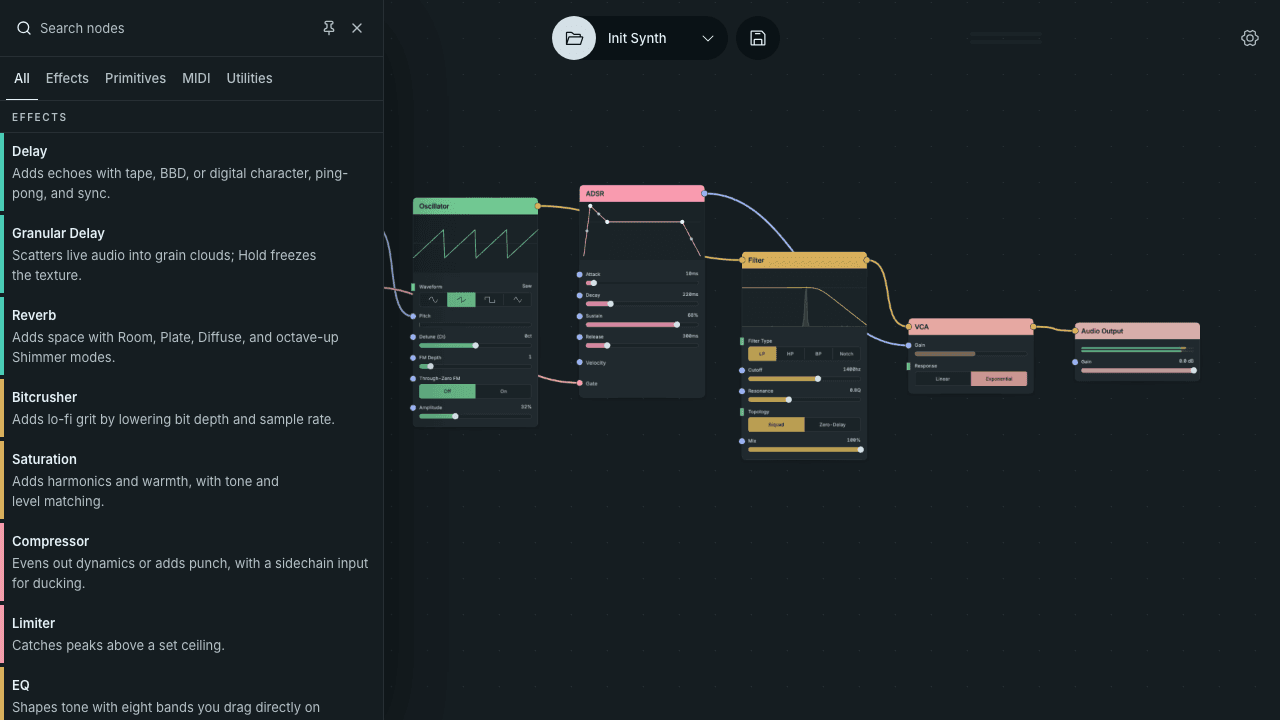
- Click Add node (+, top left).
- Type part of the node's name, or choose a category tab.
- Click the node in the list. It follows the pointer.
- Click the canvas where you want it.
Two faster routes add a node already connected:
- From a socket: drag from a socket to empty canvas and release. Choose from the nodes that fit.
- Into a cable: zoom in until a + appears at the middle of a cable, click it and choose a node to insert.
Some nodes arrive with helpers. Adding a sequencer or arpeggiator also connects a Clock, and adding a quantizer connects a Scale node. Entries such as Delay (1/4 synced) add a small, already-connected group of nodes.
Connect and disconnect
- Connect: drag from an output socket (right side) to an input socket (left side).
- Disconnect: click the cable and press Option+Shift+Delete, or drag across it with the Cut tool (B).
See Connections and sockets for what each cable carries and why a connection might be refused.
Select
- Click a node's title bar to select it. Shift-click to add or remove nodes.
- Drag across empty canvas with the Select tool to select every node in the rectangle.
- Press Cmd+A to select every node on the current canvas.
Move and arrange
- Drag a node by its title bar. Dragging inside the node's body changes its controls instead.
- Press Option+Arrow to nudge the selection one step.
- Press Option+Shift+T to tidy the whole patch into a left-to-right layout. It is one undo step.
Change a value
- Drag a slider, or click a button or menu option.
- Type a value: click the number at the right end of a slider, type and press Return. Pitch controls also accept note names such as
C5. - Hold Option and drag to pan over a node's display without changing it.
A control driven by a cable or a Macro shows the incoming value and does not respond to dragging.
Duplicate, bypass and delete
| To | Press |
|---|---|
| Duplicate the selected node | Option+Shift+D |
| Bypass or mute the selected node | M |
| Delete the selection | Option+Shift+Delete |
| Delete a node and reconnect the chain around it | Cmd+X |
Delete and reconnect works when the node has one compatible input cable and one compatible output cable. Otherwise the node is deleted without reconnecting, and a message explains why.
Audio Output cannot be deleted: every patch keeps one.
Undo
Press Cmd+Z to undo and Cmd+Shift+Z to redo. Compound actions, such as inserting a node with its Clock or creating a Zone, undo in one step.
Structure a larger patch
Frames, Groups and Zones each have their own shortcuts and menus. See Frames, Groups and Zones.