 Strangelight Audio
2.1. The editor
The editor shows your patch and the controls used to change it. Editing and navigation teaches the gestures and shortcuts.
2.1.1. Editor controls
The editor controls surround the canvas. These areas keep patch management, canvas gestures and performance controls within reach while you work. The numbered picture shows the four main areas.
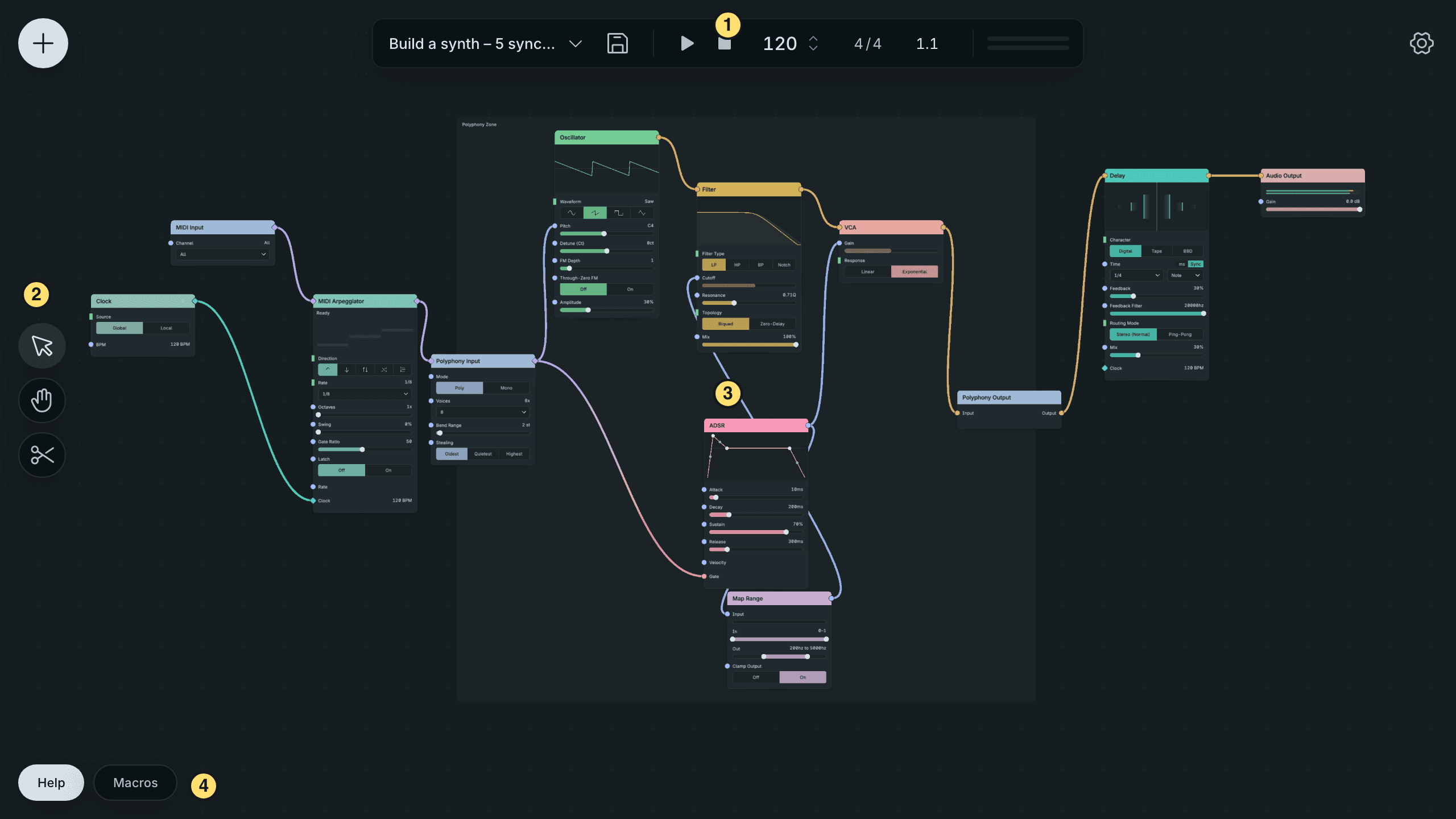
The Editor’s Toolbar, Tools, Canvas And Panels.
- Toolbar — add nodes, manage patches, read output meters and open settings.
- Tools — choose what a drag does on the canvas.
- Canvas — build the patch with nodes, cables and structures.
- Macros — open the performance dials.
The Add node button opens the node browser. The patch-name menu holds new, save and recent-patch actions; its Other… option opens the patch browser. The Save patch button stores your patch. Output meters show the level sent to your DAW; the Settings button opens preferences.
The Select, Pan and Cut tools change what a canvas drag does. The Macros button opens the performance dials along the bottom.
Help is a tooltip beside the pointer. Pause on a socket to read its signal, or on a cable to see its two ends. Help also names icon buttons and short labels in full, and explains controls whose name alone is unclear. See Help, Monitor and node displays.
2.1.2. The canvas
The canvas is the workspace where nodes, cables and patch structures appear. A patch’s layout lets you follow the route from source to destination. Moving a node changes its position; its cables still decide what it does. The picture shows a complete voice, with MIDI entering on the left and audio leaving on the right.
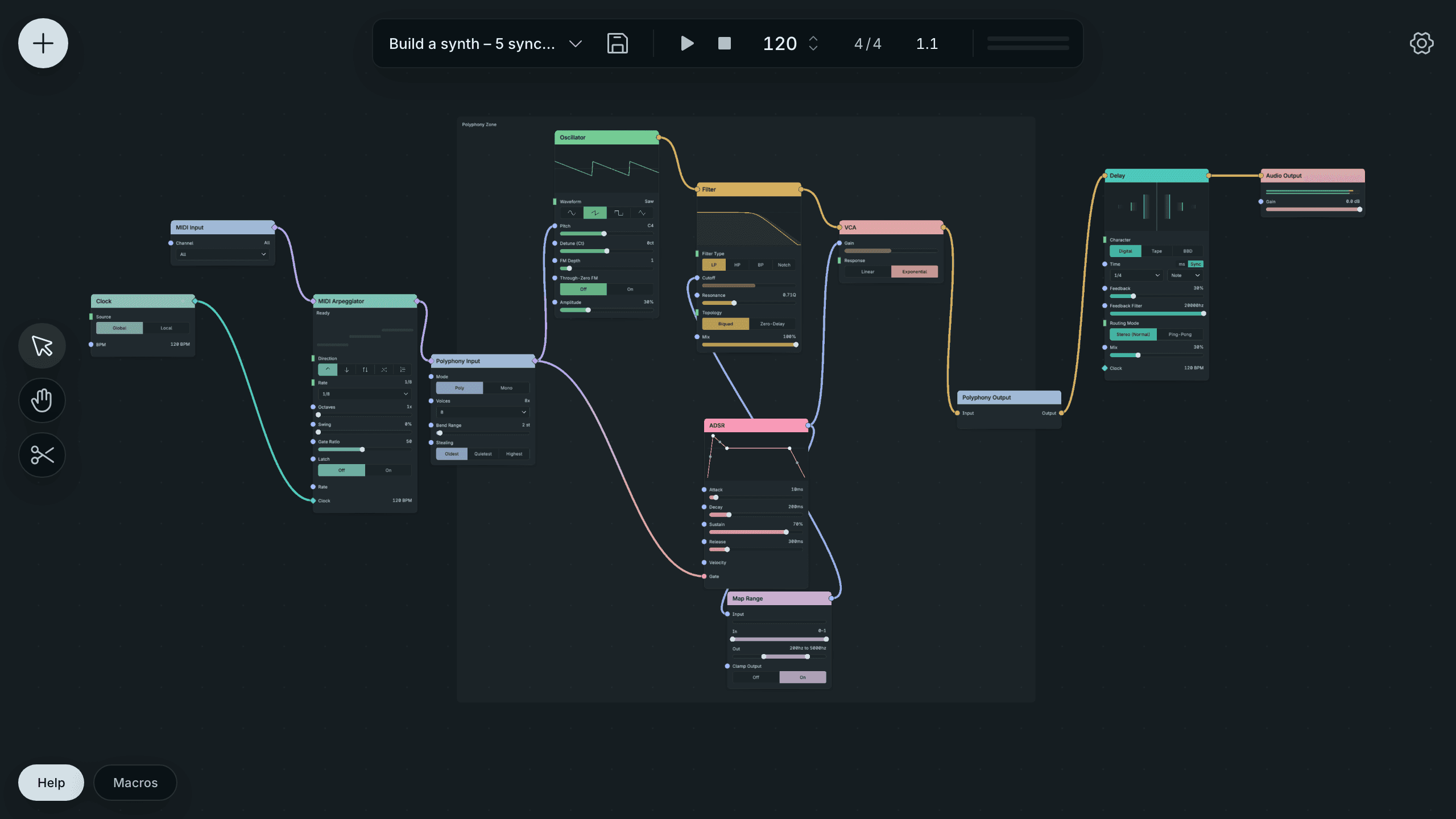
A Complete Synth Patch On The Canvas.
Zooming changes the level of detail the editor draws. At a wide view, labels and controls simplify so the larger structure stays readable. Zoom in to edit a control or inspect a socket. Cable insertion controls appear from 65% zoom.
A Group has its own canvas. Breadcrumbs show your current location and its parents; Root returns to the outer canvas. A Zone stays on the current canvas and never adds a breadcrumb level.
2.1.3. Browsers, menus and inspectors
The node browser is the chooser for finding and placing nodes. The command palette searches nodes and editor commands together. Context menus show actions for the item under the pointer, while an inspector holds settings for a selected structure. These surfaces let you work on the same patch without adding extra nodes for editor actions.
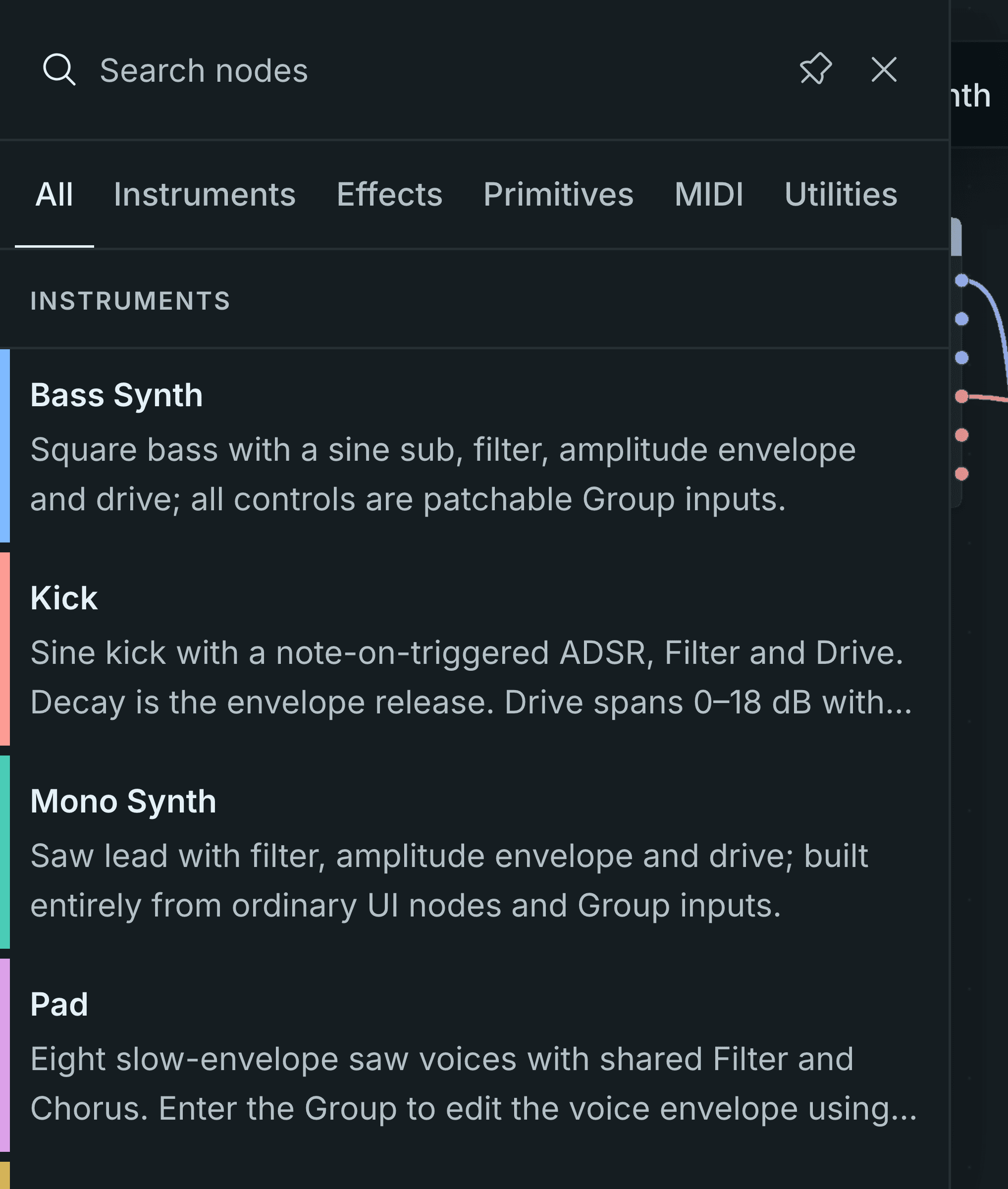
The Node Browser For Finding A Building Block.
The Add node button opens the browser. Shift+A opens the command palette, where commands include Create Polyphony Zone and Tidy graph. Right-click a node, cable, Frame, Zone or empty canvas to see its context menu. A Group inspector lets you change the Group’s name and colour.
Inside a plugin window, your DAW owns its transport and note-entry keys. Keyboard shortcuts explains the keys available while the editor has focus.