 Strangelight Audio
2.9. Help, Monitor and node displays
Throughline offers descriptions and visual evidence beside the patch. Inspecting signals teaches how to investigate a route before changing it.
2.9.1. Contextual Help
Contextual Help is a tooltip beside the pointer. The tooltip shows only information the canvas does not already show. It can name an icon button, or give the full name behind a short label, such as Low-pass filter for the Filter’s LP button. It can also be what a control does when its name alone is unclear, such as the Filter’s Topology options. For a socket it shows the signal, and for a cable it shows the two ends. Hovering the Oscillator-to-Filter audio cable names the sockets at its ends.
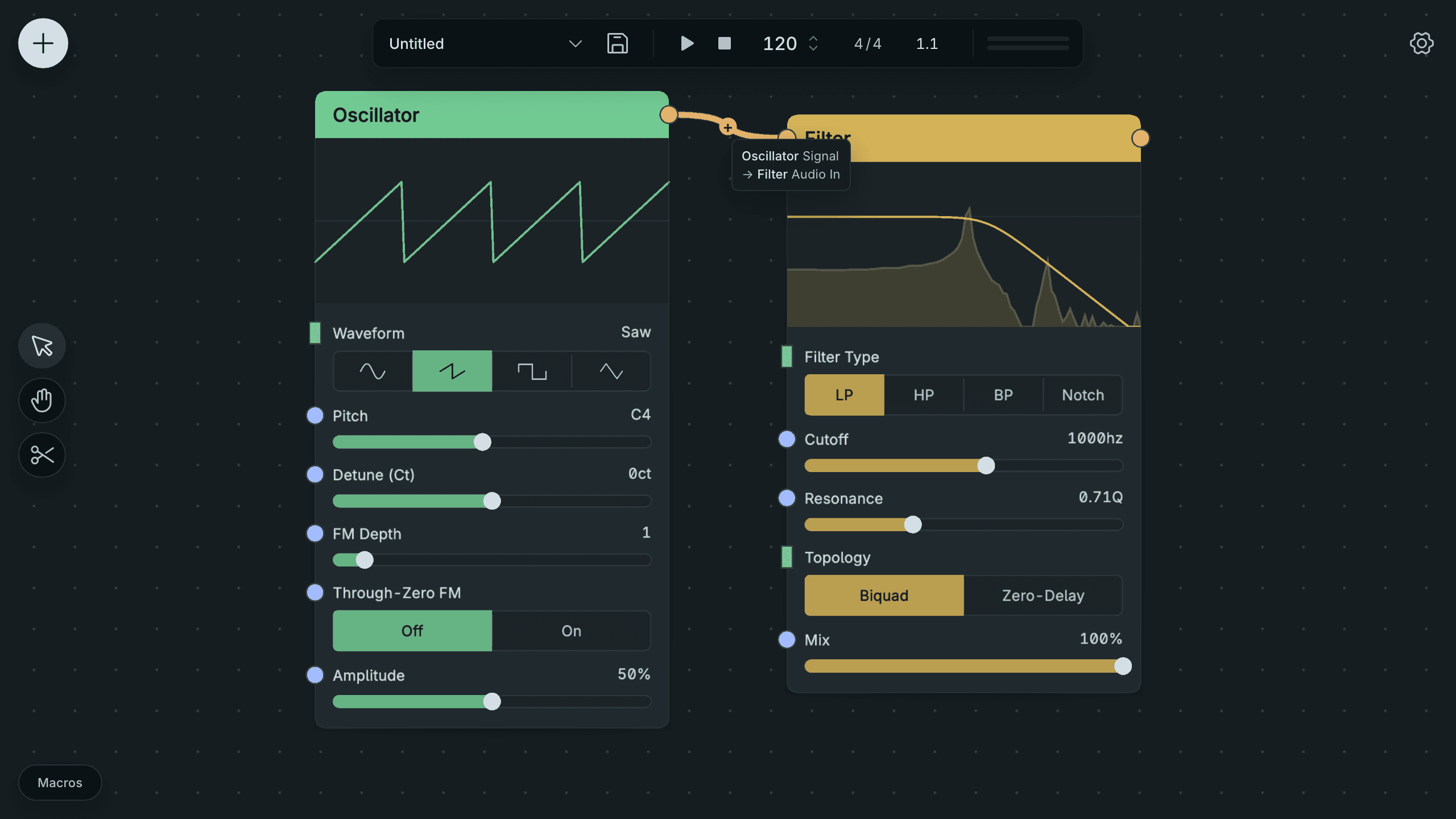
Help Names The Ends Of The Hovered Audio Cable.
Point at a socket to read its signal kind and range. Point at a cable to see which sockets it joins. This distinguishes numerical meaning from visual appearance: two similarly coloured control sockets can expect different units.
A node’s Documentation context-menu action opens its reference page. The catalogue describes its sockets and controls in more detail. Structural items open their related guide pages: Frames and Groups use Structure a patch, while a Polyphony Zone uses Polyphony.
See Node pages: how to read them.
2.9.2. Monitor and meters
Monitor is a node that displays the signal arriving at its input. It passes that signal through unchanged, so it can sit inline or receive a second cable from the source you want to inspect. The picture shows the Filter feeding Monitor beside the existing cable to Audio Output.
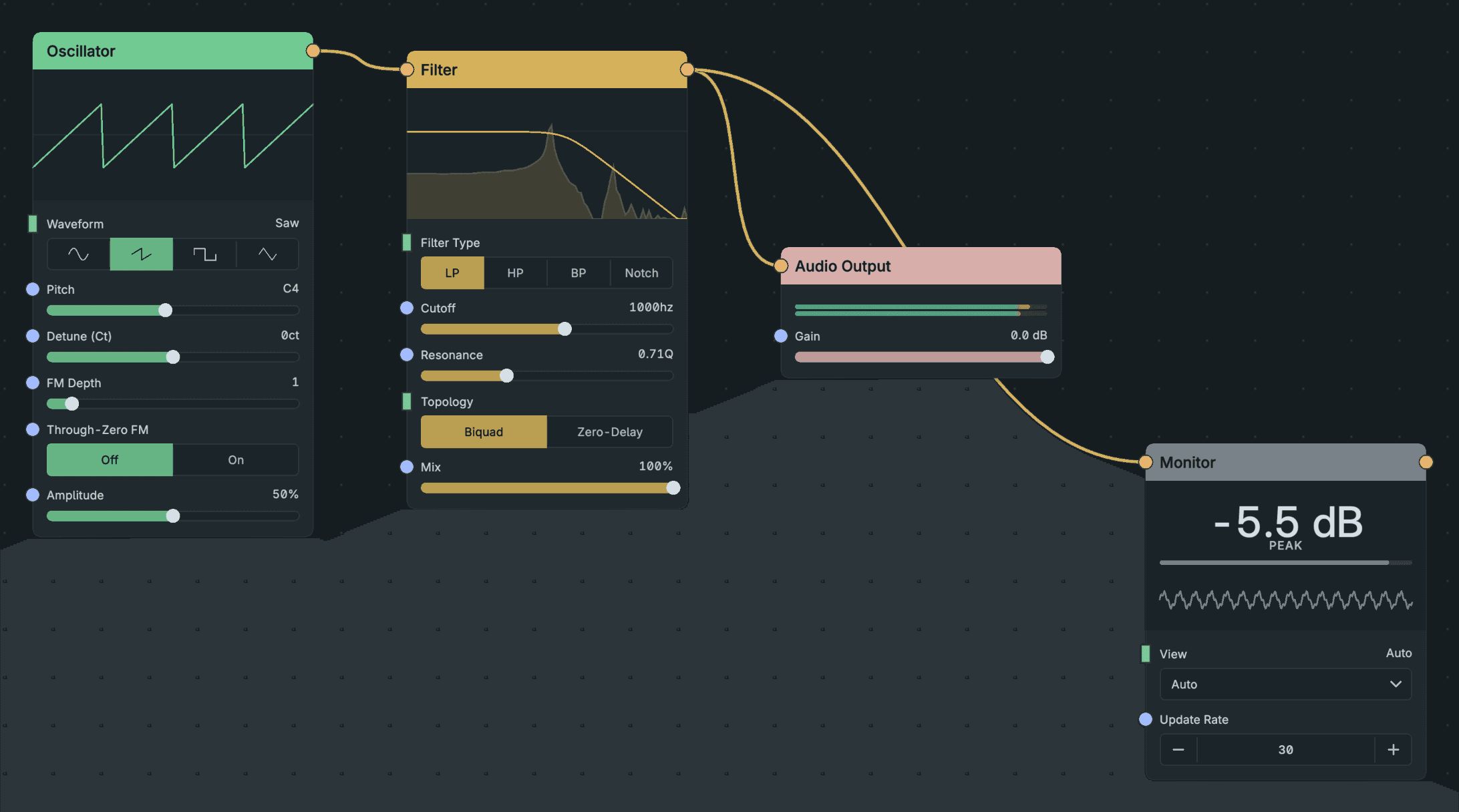
Monitor Reading The Signal Before Audio Output.
Its view depends on the signal kind. Audio shows level and waveform, and a control signal shows a value and recent range. MIDI shows held notes and a chord display. Clock, gate and other kinds have their own views.
Read the status first: NO SIGNAL means nothing has arrived, and STALE means the last data is out of date. NO PREVIEW means a live view is unavailable. Output meters at the top right show what the plugin sends to the DAW. A meter answers a level question, and contextual Help describes what kind of signal the route carries.
See Inspecting signals.
2.9.3. Node displays
A node display is a drawing of its shape, response or state on the node itself. A display can be editable, or it can explain the current settings or show incoming data. The picture includes the ADSR envelope curve and Filter response, placing the visual explanation beside the controls that change it.
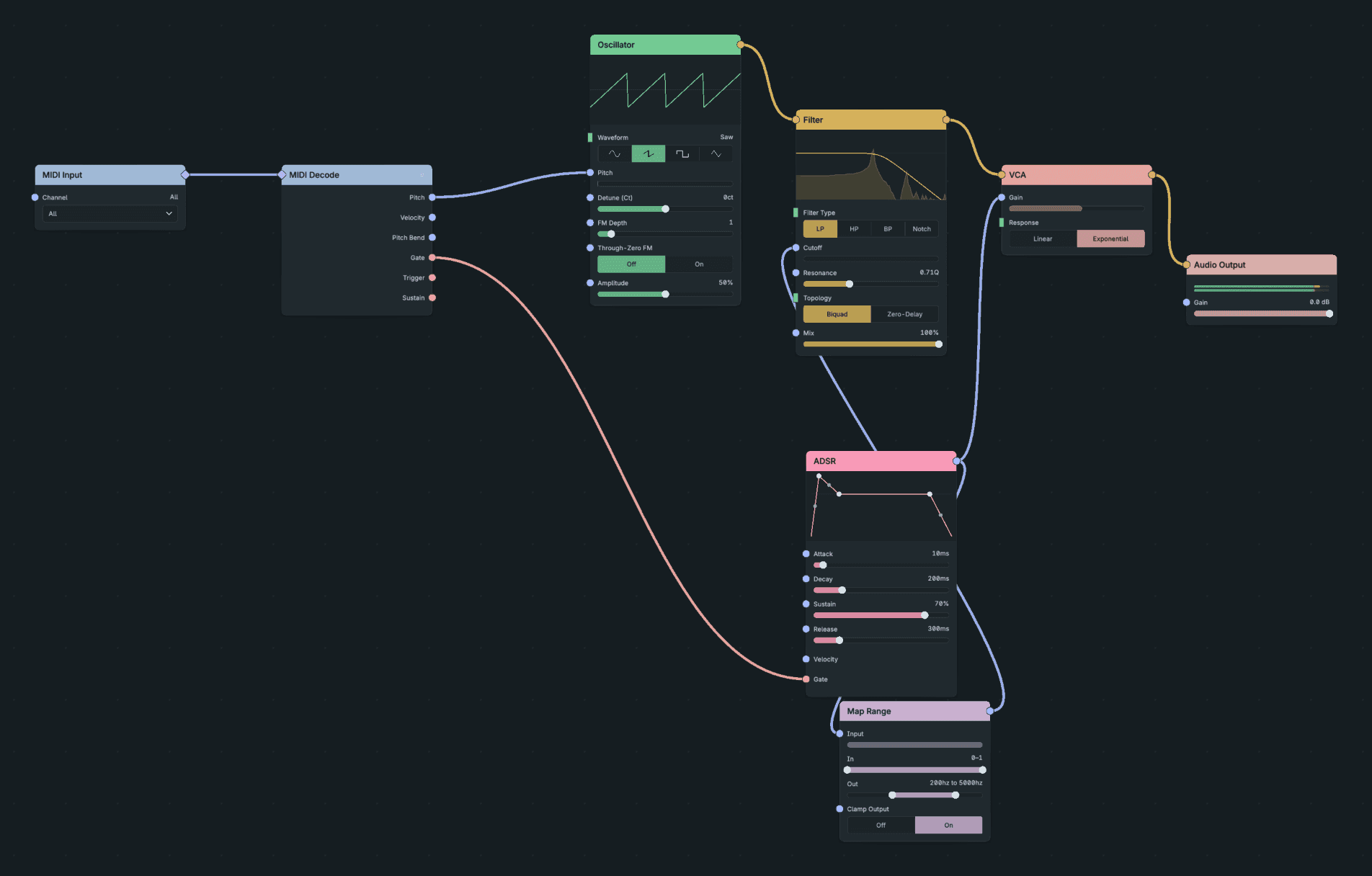
Filter Response And Envelope Shape On Their Nodes.
A response curve explains how a filter shapes frequencies. An envelope curve explains how its stages change level over time. Those drawings show the effect of a setting without adding another analyser.
A drawing is not always a measurement: the Limiter display illustrates settings with an example envelope. Bitcrusher can use an example waveform while idle. Use Monitor or a meter when you need evidence of the incoming audio.
A Faulted badge means a node produced invalid audio and was silenced. Troubleshooting explains how to investigate that state before restoring the node.
See Inspecting signals.