 Strangelight Audio
4.3.2. Groups
Choose a structure according to its job: visual organisation, a reusable subgraph, or voice behaviour.
4.3.2.1. Groups
- Select the nodes to reuse.
- Open their context menu and choose Create Group.
- Check the exposed sockets on the parent canvas.
Result: the selected nodes occupy a nested canvas behind one Group node.
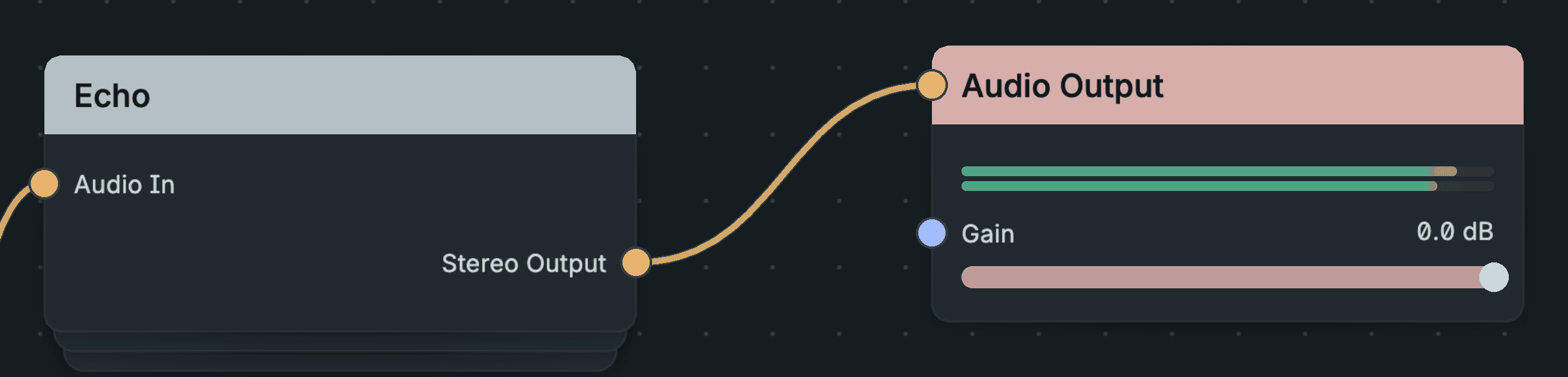
Groups.
A Group moves nodes onto their own canvas. The parent canvas shows one Group node with the inputs and outputs you expose. Groups organise a patch without changing how it runs.
The Instruments category includes Mono Synth, Bass Synth, Pad, Kick and Snare as examples of editable Groups. Add one, connect MIDI In and Audio Out, then enter it to explore or change its nodes. Each placed copy keeps its own graph and settings.
4.3.2.2. Create a Group
- From a selection: select two or more nodes and press Option+Shift+G (macOS) or Alt+Shift+G to group them. Create Group is also in the right-click menus and the command palette. Cables between the selected nodes and the rest of the patch are carried across the new Group's boundary.
- Empty: with nothing selected, choose Create empty Group in the command palette.
A new Group opens straight away so you can edit it. Groups can contain other Groups.
4.3.2.3. Move in and out
Entering a Group opens its nested canvas. The Echo Group holds its Delay between Group Input and Group Output. While you edit inside it, the breadcrumbs above the canvas keep the route back to Root.
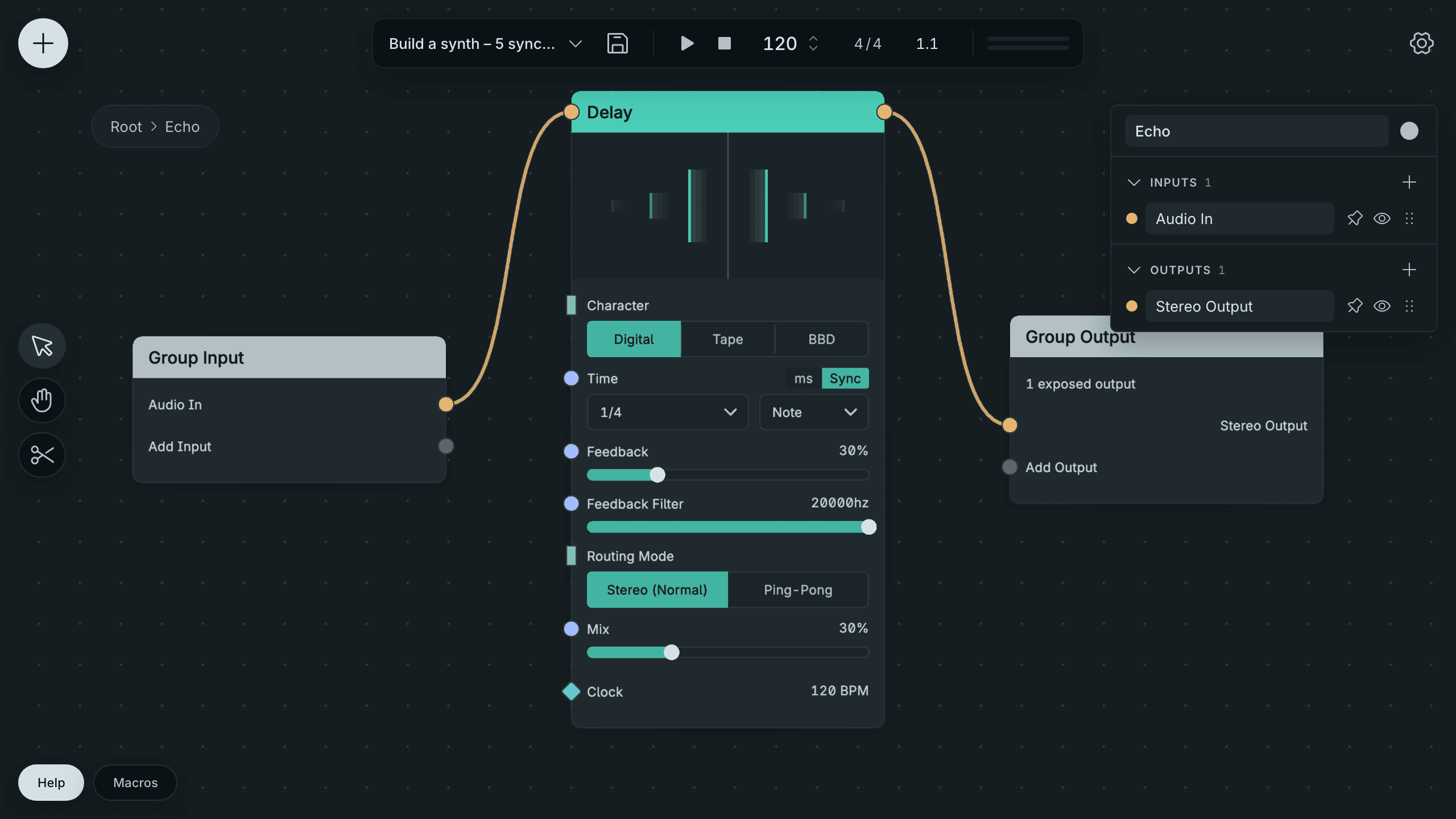
Enter And Leave The Echo Group.
- Enter: double-click the Group node, or select it and press Option+Shift+E (macOS) or Alt+Shift+E.
- Leave: click Root or a parent in the breadcrumbs at the top of the canvas, or press Option+Shift+X (macOS) or Alt+Shift+X.
Rename a Group and edit its colour in the Group inspector.
4.3.2.4. Connect across a Group boundary
Inside a Group, the Group Input and Group Output nodes each have an add socket:
Expose Sockets Inside A Group.
- Drag from the Group Input add socket to a node's input to expose that input on the Group node.
- Drag from a node's output to the Group Output add socket to expose that output.
Then connect the Group node in the parent canvas as any other node. In the picture above, the Echo Group exposes the Delay's Audio In and Stereo Output.
4.3.2.5. Duplicate, delete and reuse
Right-click a Group node:
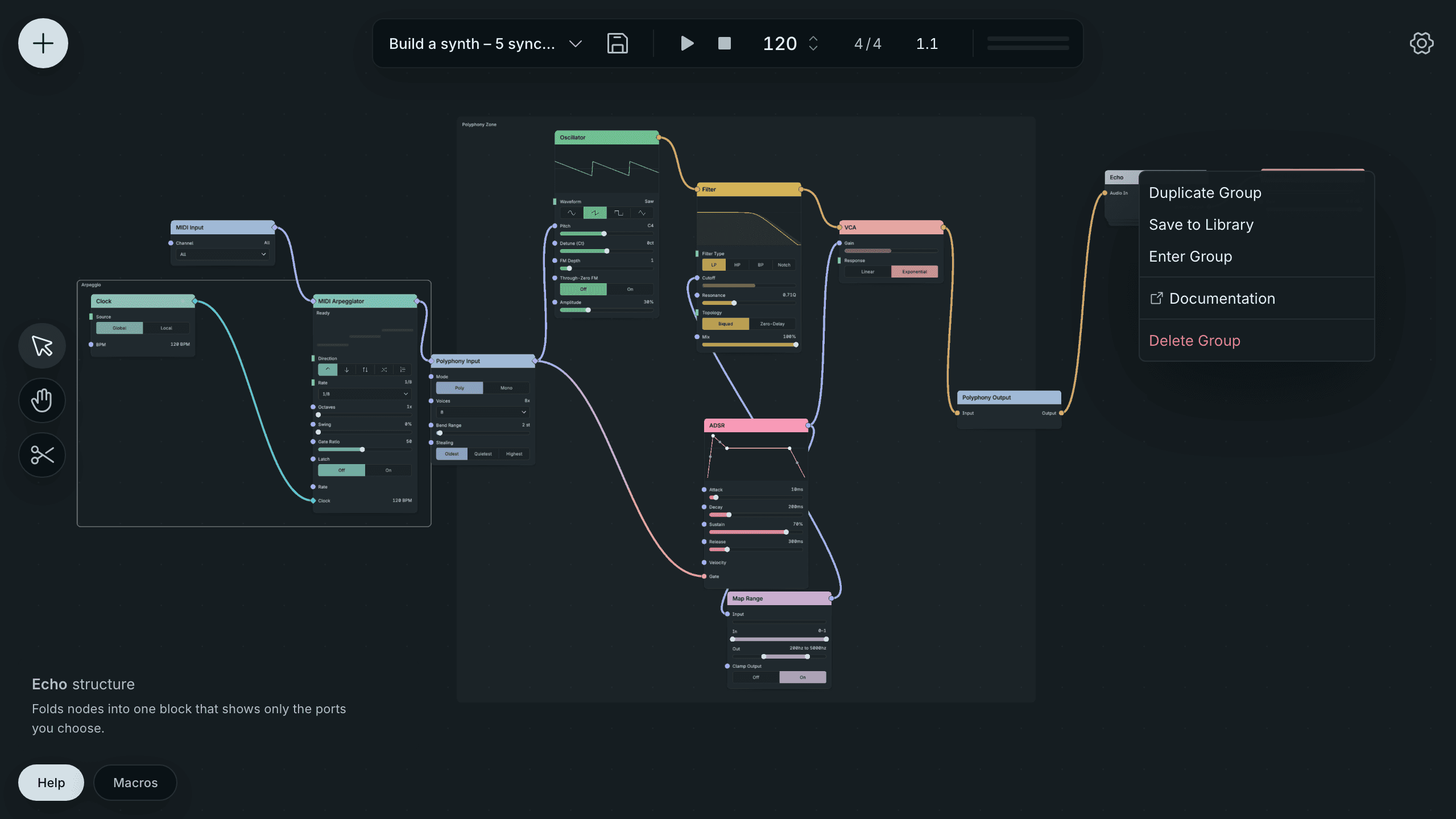
Actions On The Echo Group.
- Duplicate Group makes another copy.
- Delete Group removes the Group and everything in it.
- Save to Library stores the Group in your Local Library, so you can add copies to any patch from the node browser's Local Library. Edit a placed copy by entering it. See Save, load and reuse.