 Strangelight Audio
4.4. Macros and DAW automation
A Macro is a dial in the Macros panel that drives a parameter on a node. Use Macros for the handful of controls you want to play. Your DAW sees Throughline only through its eight Macro slots, so put every control you automate on a Macro.
4.4.1. Assign a parameter
Assigning a Macro replaces the parameter’s manual control with a binding to a panel dial. For Filter, the Macro changes the same frequency value that the Cutoff slider sets when no Macro is assigned.
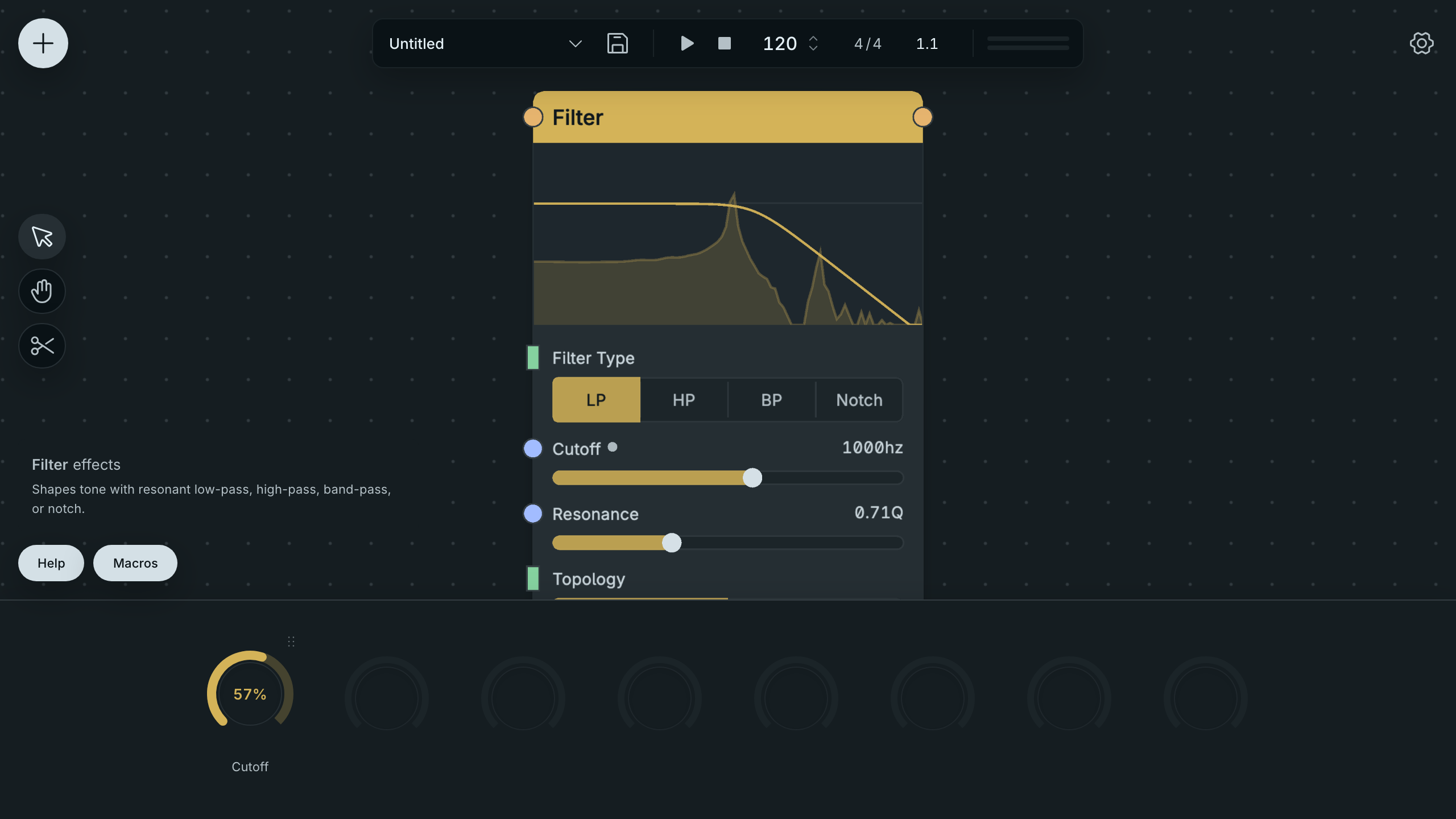
Assign A Parameter.
- Right-click a parameter's row on a node.
- Choose Assign Macro.
Throughline creates a Macro in the next free slot, named after the parameter, and opens the Macros panel. The parameter's own control now follows the dial. Rename the Macro for what it does to the sound, such as "Brightness", instead of for the parameter underneath.
Each assignment creates its own Macro. To remove one, right-click the parameter and choose Remove Macro.
You can also assign from the panel. Click Macros at the bottom left of the editor, then click an empty numbered slot. Move and release the slider you want to bind.
Result: the Macro dial drives its assigned parameter and keeps its DAW slot.
4.4.2. What can be assigned
The assignment fails when the parameter:
- already has a cable connected to its input. A parameter has one driver at a time: its control, one cable or one Macro.
- already belongs to another Macro.
- is an on/off toggle, a whole-number control, or a mode that changes the node's structure, such as Filter Topology.
- has no finite range.
You can assign an option chooser when it does not change the node's structure. Its Macro steps through the options instead of sweeping. A parameter on a Macro also refuses new cables; remove it from the Macro first. See Macro assignment fails.
4.4.3. Macros in a Polyphony Zone
A Macro assigned to a parameter inside a Polyphony Zone (see Polyphony) moves that parameter in every voice, so a chord responds as one sound.
4.4.4. Automate from your DAW
Throughline shows your DAW eight automatable parameters, Macro 1 to Macro 8. Each Macro keeps the slot it was created in.
- Draw automation, map a hardware controller or record a sweep on a slot, and the Macro moves the parameter assigned to it.
- Renaming a Macro or moving it in the panel does not change its slot, so existing automation keeps working.
- Deleting a Macro frees its slot. A Macro created later can reuse that slot, and the old automation then drives the new Macro. Keep a slot's meaning fixed once you have written automation for it.
- The DAW shows the generic slot names. Your Macro names appear only in the editor.
When all eight slots are used, Assign Macro is unavailable until you delete a Macro.
4.4.5. Choose good Macros
- Promote the controls you reach for while listening, not the ones you set once.
- Keep a slot free for a control you discover while playing, such as an effect amount.
4.4.6. Suppose you want one brightness control for a chord
A Macro stores a binding to a parameter; inside a Zone that parameter exists in every voice.
- If a cable already drives Filter Cutoff in the voice, select that cable and delete it before assigning the Macro.
- Right-click the Filter Cutoff slider inside the Polyphony Zone and choose Assign Macro.
- Rename the Macro to Brightness.
- Play a chord and move the Brightness dial.
Result: every voice changes together because the Macro binding addresses the voice parameter instead of one held note. The same stable Macro slot lets the DAW automate that control.