 Strangelight Audio
3.6. Pitch and scales
Pitch travels through a patch in three forms. The cable converts between them automatically for the common connections. This page covers when to make a conversion visible, how to keep notes in key, and why each pitch path needs its own key setting.
3.6.1. Pitch forms
- Connect MIDI Decode Pitch to Pitch Quantizer Note.
- Choose the root and scale on Pitch Quantizer.
- Connect its Note output to Oscillator Pitch.
Result: the oscillator receives notes constrained to the chosen scale.
| Form | Unit | Example |
|---|---|---|
| MIDI note | midiNote |
60 is middle C |
| Pitch CV | v/oct |
0 is C4 |
| Frequency | Hz |
440 is A4 |
MIDI Decode outputs Pitch as v/oct, and Oscillator Pitch accepts it directly. Add Convert when you want the change of form visible in the patch. Use it when two or more destinations share the conversion, or to save a reader from working it out. Convert reads its input form from the connected source, and you choose the output form on the node.
3.6.2. Keep notes in key
A quantizer snaps notes to a scale. Choose by what is flowing:
- Quantize Pitch for a pitch control signal, inside a modulation or CV path.
- MIDI Scale Quantize for a MIDI note stream. See MIDI recipes.
When you add a quantizer, the editor connects it to the patch's Scale node, and adds one if the patch has none. Set the Key and Scale choosers on the Scale node. While a Scale node is connected, the quantizer hides its own Root and Scale controls and follows the Scale node. Quantising is what makes random sources musical: a Random or Sample & Hold value ignores key until a quantizer follows it.
Diagram as text
Clock connects to Sample & Hold via Trigger. Sample & Hold connects to Quantize Pitch via Value. Quantize Pitch connects to Oscillator via Pitch.
graph LR
    TRIG[Clock] -->|Trigger| SH[Sample & Hold]
    SH -->|Value| QUANT[Quantize Pitch]
    QUANT -->|Pitch| OSC[Oscillator]
3.6.3. Each path has its own key
No key setting applies to every node. A quantizer constrains only the path it sits on, so adding one quantizer does not put the rest of the patch in key. Every pitch path that needs a key needs its own quantizer. Two quantizers can also use two different keys on purpose, for example a bass line and a pad.
A quantizer with no Scale node connected uses its own Root and Scale controls. On MIDI Scale Quantize, Root set to Auto follows the active project key.
3.6.4. Share one key
Quantizers connected to the same Scale node share its key, so you change key in one place. To give one path a different key, connect its quantizer to a second Scale node.
The Scale node still affects only the quantizers you connect it to.
Diagram as text
Scale connects to Quantize Pitch via Scale. Scale connects to MIDI Scale Quantize via Scale. Random connects to Quantize Pitch via Value. Quantize Pitch connects to Oscillator via Pitch.
graph LR
    SCALE[Scale] -->|Scale| Q1[Quantize Pitch]
    SCALE -->|Scale| Q2[MIDI Scale Quantize]
    RAND[Random] -->|Value| Q1
    Q1 -->|Pitch| OSC[Oscillator]
3.6.5. Glide after quantising
Glide slides pitch from one note to the next. Put it after the quantizer: quantize then glide, and the pitch slides between in-key notes. Glide before quantising turns the slide into a staircase.
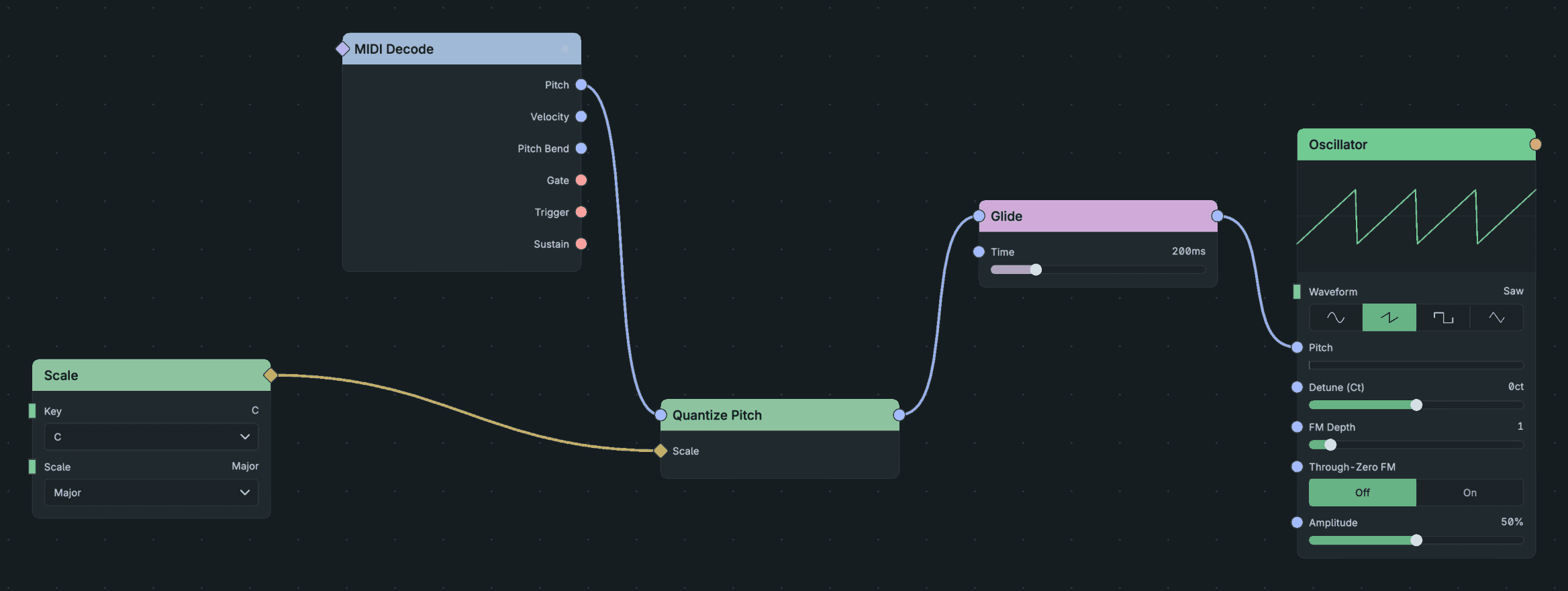
Glide Between In-Key Notes.
3.6.6. Transpose a performance
Use MIDI Transpose on the MIDI stream instead of arithmetic on a pitch signal. It shifts by semitones and octaves and keeps notes in the MIDI range. Math nodes do raw arithmetic and treat notes as plain numbers. See Control signals and logic.
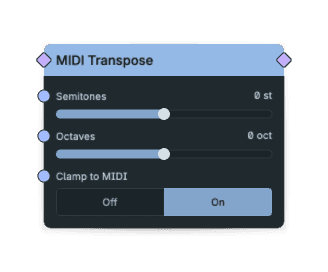
Midi Transpose Controls.