 Strangelight Audio
1.3. Play your first patch
Throughline opens with a playable Init patch. This page shows you how to play it, change its tone and keep the result in your DAW project.
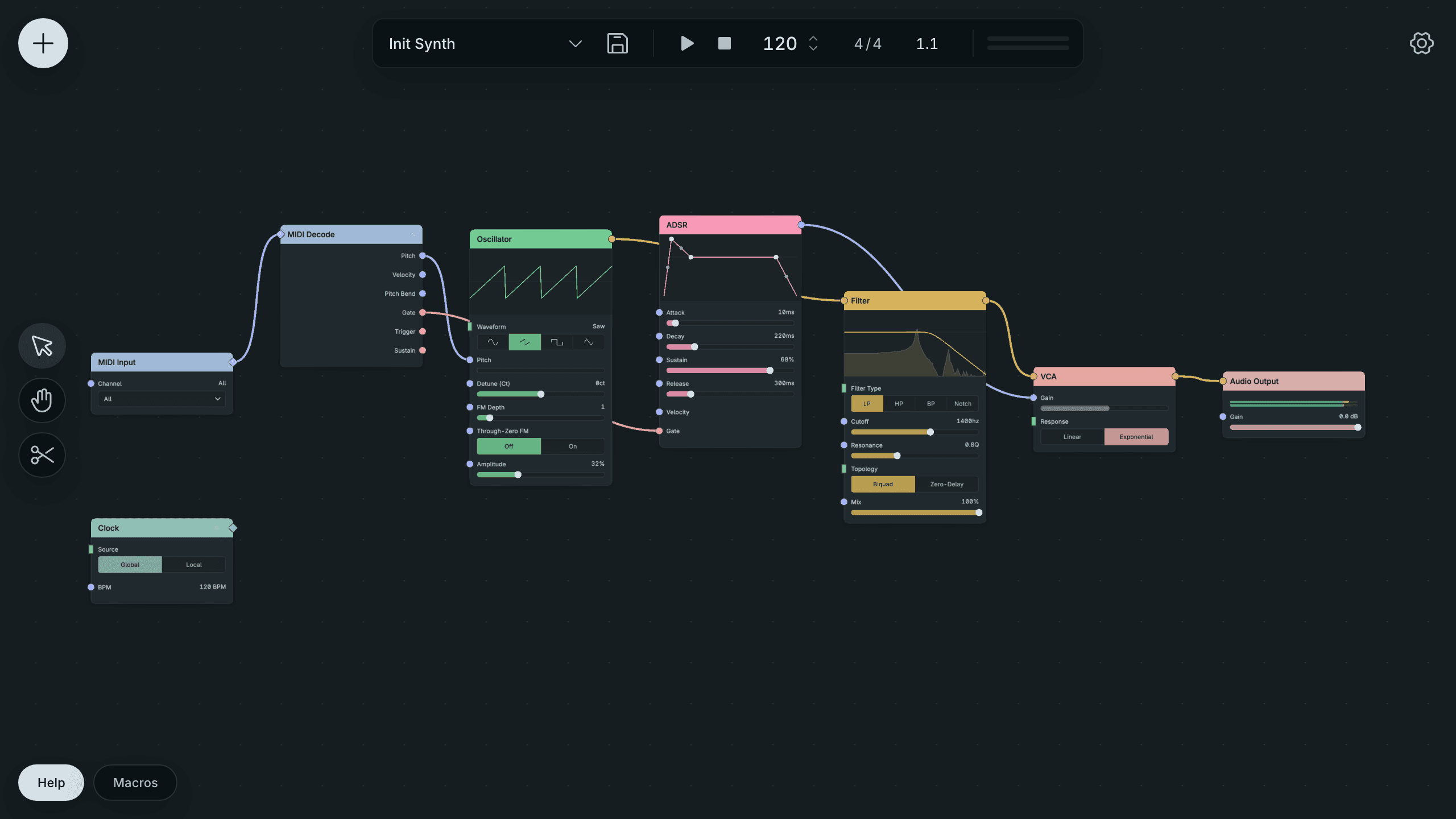
The Init patch. MIDI enters on the left, and audio leaves through Audio Output on the right.
1.3.1. Play the Init patch
- Load Throughline on an instrument track. See Set up your DAW if the plugin is missing from the list.
- Arm or select the track so it receives MIDI.
- Play notes on your controller or your DAW's computer keyboard.
You hear a sawtooth through a low-pass filter. The note starts when you press a key and fades when you release it.
No sound? Check that the track receives MIDI and that its meter moves. The output meters at the top right of the editor show what Throughline sends. For more checks, see No sound.
Result: the Init patch plays and your changes affect the sound.
1.3.2. How the patch works
Read the patch from left to right. Each cable carries one kind of signal from an output socket (right side of a node) to an input socket (left side).
- MIDI Input receives notes from the track.
- MIDI Decode turns each note into Pitch and Gate.
- Oscillator makes the tone at that pitch.
- Filter removes high frequencies above its Cutoff.
- ADSR shapes the level over time while Gate is on and after it ends.
- VCA sets the level from the ADSR's Envelope.
- Audio Output sends the result to your DAW.
The patch has no Clock node. Synced nodes follow the Global Clock in the header, and Sync to tempo shows when to add a Clock.
1.3.3. Change the sound
Hold a note or loop a MIDI clip while you change these:
- On Oscillator, click another Waveform button. Square sounds hollow. Sine sounds pure.
- On Filter, drag the Cutoff slider left for a darker sound and right for a brighter one.
- On ADSR, drag Release to the right. Notes now fade for longer after you release the key.
To type an exact value, click the number at the right end of a slider, type the value and press Return. Press Cmd (Mac) / Ctrl (Win) + Z to undo a change.
Result: the Init patch plays and your changes affect the sound.
1.3.4. Keep your work
Save the DAW project. Throughline stores the whole patch with the project, so the sound comes back when you reopen it. To keep a separate copy, or to use the patch in another project, see Save, load and reuse.
1.3.5. Next steps
- Build a synth has you connect this kind of voice yourself, then makes it play chords.
- Editor overview names the parts of the editor.
- Using an effect or MIDI track instead? See Effects and mixing or MIDI recipes.