 Strangelight Audio
3.7. Control signals and logic
This page covers two control jobs. You move a signal into the range a destination expects, or you turn it into a yes/no decision. Use Map Range for the first and Compare for the second.
3.7.1. Remap a signal
Map Range converts a source range into a chosen destination range. Here, a MIDI controller’s full travel becomes a filter sweep between 200 Hz and 2000 Hz.
- Connect MIDI Input to CC Extractor. Set its CC A Number slider to the controller number you want to read.
- Connect CC Extractor CC A output socket to Map Range Input socket.
- Connect Map Range Result output socket to Filter Cutoff input socket. This sets the output unit to Hz.
- Leave the In sliders at 0–1 and set the Out sliders to 200–2000 Hz.
- Move the MIDI controller read by CC Extractor.
Result: the controller sweeps Filter Cutoff across the chosen frequency range.
Map Range has two range controls. Set the In sliders to the range the source produces and the Out sliders to the range the destination needs. Connect Result to the destination before setting Out: the first connection decides the unit of Out and replaces any range you entered earlier.
For example, CC Extractor reads a MIDI controller as values from 0 to 1 across its travel. To sweep a filter between 200 Hz and 2000 Hz, leave In at 0–1 and set the Out sliders to 200–2000 Hz.
Diagram as text
CC Extractor connects to Map Range via 0 to 1. Map Range connects to Filter Cutoff via 200 to 2000 Hz.
graph LR
    CC[CC Extractor] -->|0 to 1| MAP[Map Range]
MAP -->|200 to 2000 Hz| FILT[Filter Cutoff]- Clamp Output is on by default, so the result stays inside the Out range when the source overshoots.
- Use a separate Clamp node only for limits that differ from the mapping, or for limits that move. Clamp has Min and Max inputs.
- Once Map Range drives one kind of destination, it keeps that unit. Connecting the same Map Range to a destination with a different unit is refused.
Prefer Map Range to a chain of arithmetic nodes such as Multiply, Divide, Add and Subtract. Map Range states the output range directly, so a reader does not have to work it out from two constants.
3.7.2. Make a threshold decision
Compare tests input A against B with the Mode you choose, such as greater than. It has two outputs:
- Gate stays on for as long as the test is true. Use it for "open while this is above that".
- Changed fires a one-moment trigger each time the result flips. Use it to start an event once at the crossing, such as an envelope retrigger.
Connect a Value node to B for a fixed threshold, so the number is visible in the patch.
A typical use: an Envelope Follower tracks the level of a drum loop, and Compare checks it against a threshold. Gate then opens an ADSR while the drums are loud.
3.7.3. Events, state and switching
A trigger can change a held state. Button supplies the event and Toggle holds the resulting on/off value.
| To do this | Use |
|---|---|
| Get separate triggers when a gate rises and falls | Edge |
| Hold an on/off state that flips on each trigger | Toggle |
| Choose between two signals | A/B Switch |
| Hold a gate while you press a button | Button |
| Send one trigger per click | Manual Trigger |
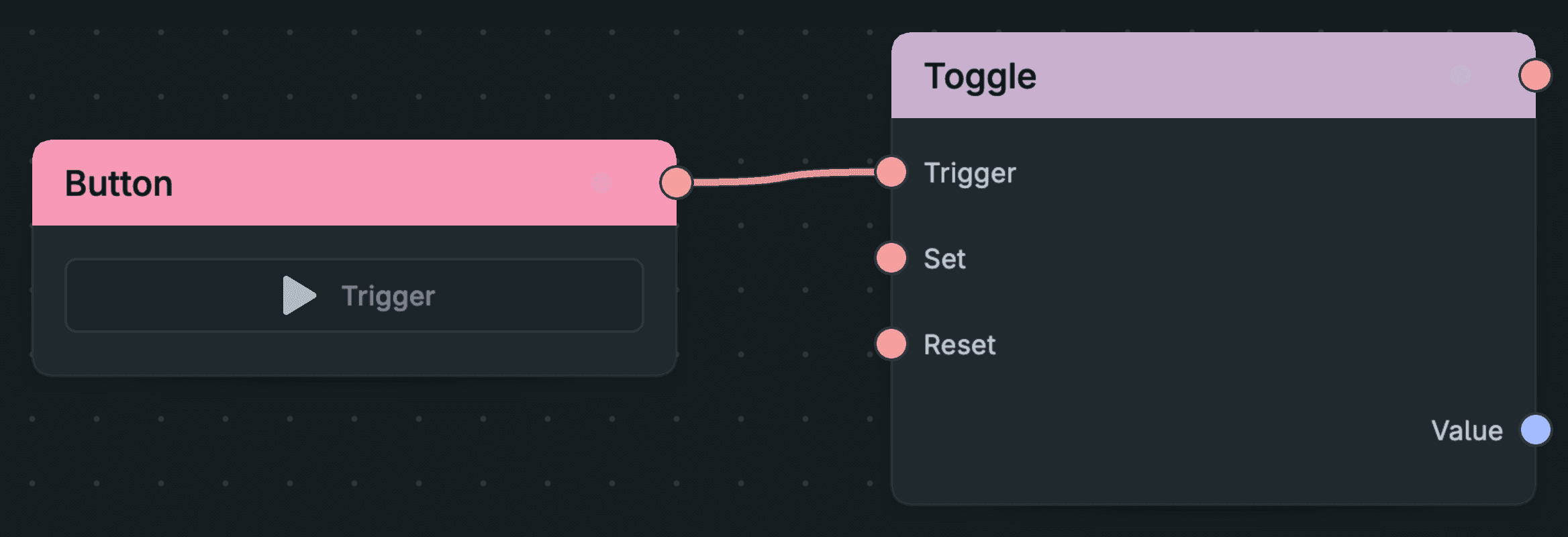
Events, State and Switching.
3.7.4. Arithmetic ignores musical units
Math nodes treat their inputs as plain numbers:
- Adding to a pitch signal shifts it by that amount in its own unit, not by semitones.
- Multiplying a pitch, note number, gate or trigger changes its size, not its musical meaning.
For musical changes, use musical nodes: MIDI Transpose or a quantizer for pitch, as described in Pitch and scales. If a signal's meaning has to change, convert it first and do arithmetic second. See Signal kinds and units.
Math nodes work on control signals. To scale audio, use Gain or VCA.