 Strangelight Audio
5.2. MIDI recipes
A MIDI chain reads left to right, the same as an audio chain. MIDI Input sits on the left and processors sit in the middle. Either MIDI Output or a voice ends the chain on the right. Order matters. Each node's reference page lists its controls.
Diagram as text
MIDI Input connects to MIDI processors via MIDI. MIDI processors connects to MIDI Output via MIDI. MIDI processors connects to Polyphony Zone or MIDI Decode via MIDI.
graph LR
    IN[MIDI Input] -->|MIDI| PROC[MIDI processors]
    PROC -->|MIDI| OUT[MIDI Output]
    PROC -->|MIDI| VOICE[Polyphony Zone or MIDI Decode]
5.2.1. Process MIDI for another instrument
Use Throughline MIDI when the instrument is elsewhere in your project:
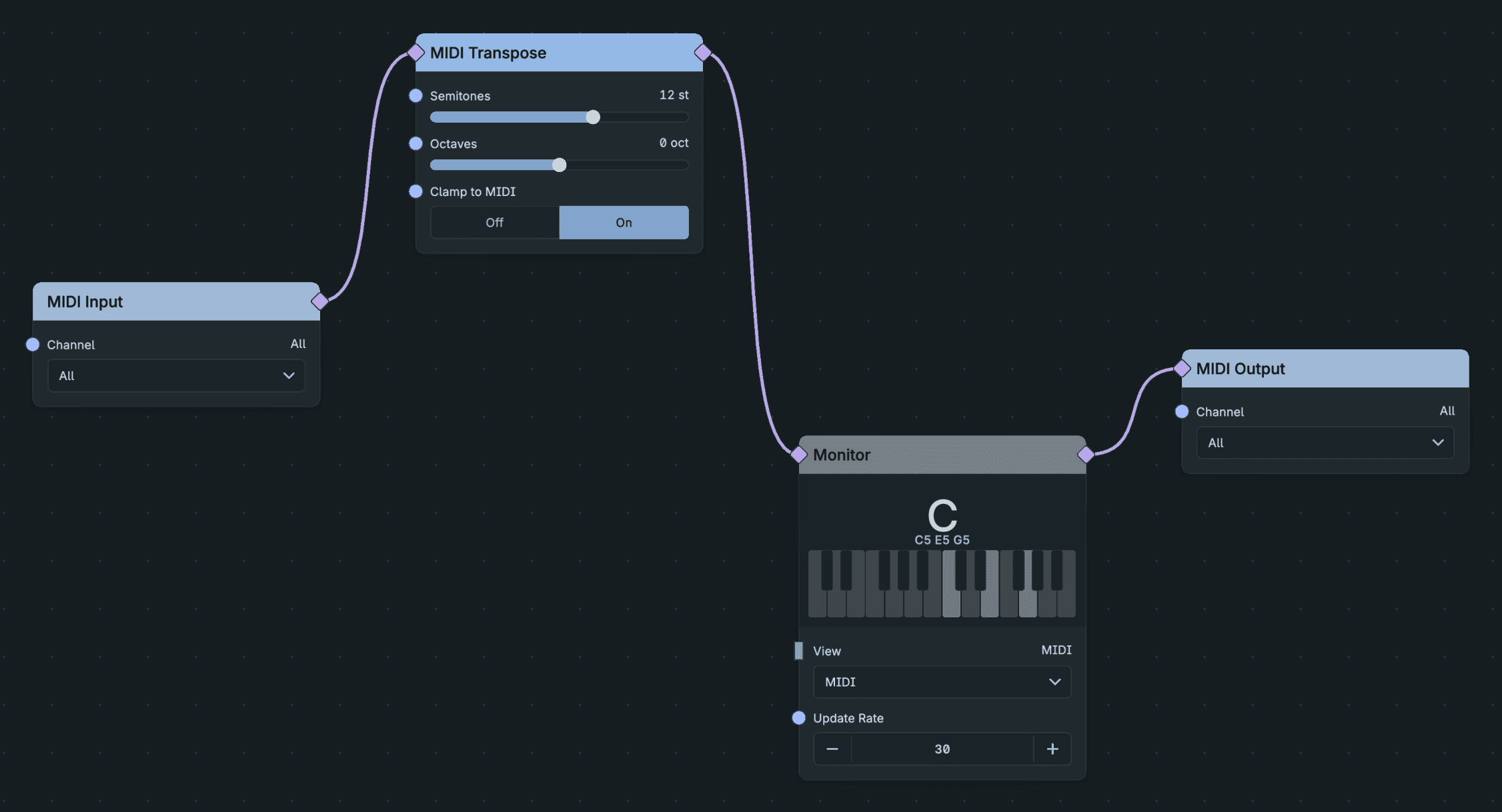
A Complete Midi Processing Route.
- Insert Throughline MIDI before the instrument, as described in Set up your DAW.
- Open the patch and build the chain from MIDI Input to MIDI Output.
- Play the track. The instrument receives the processed notes.
Inside Throughline, end the chain at a Polyphony Zone (see Polyphony) or MIDI Decode instead of MIDI Output.
Result: the processed MIDI reaches the destination instrument.
5.2.2. Transpose
Add MIDI Transpose and set the Semitones and Octaves sliders. Leave Clamp to MIDI on to keep notes inside the MIDI range. Use MIDI Transpose instead of arithmetic on pitch, because math nodes treat notes as plain numbers.
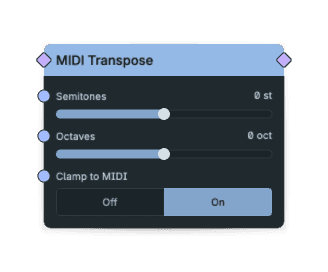
Midi Transpose Controls.
5.2.3. Keep a part in key
Add MIDI Scale Quantize. The editor connects it to the patch's Scale node, adding one if needed; set the key there. Out-of-key notes move to the nearest note in the scale. Put it after anything that changes pitch, such as MIDI Chord or MIDI Randomize. See Pitch and scales.
Harmonise what you play
MIDI harmonising adds notes to each played note before the instrument.
Diagram as text
MIDI Input connects to MIDI Chord via MIDI. MIDI Chord connects to MIDI Scale Quantize via MIDI. MIDI Scale Quantize connects to Polyphony Zone via MIDI.
graph LR
    IN[MIDI Input] -->|MIDI| CHORD[MIDI Chord]
    CHORD -->|MIDI| QUANT[MIDI Scale Quantize]
    QUANT -->|MIDI| ZONE[Polyphony Zone]
MIDI Chord turns each note into a chord. The quantizer then keeps every chord note in key.
5.2.4. Split a keyboard
MIDI Split passes only the notes inside its range. Run two branches from the same MIDI Input with ranges that meet, one for each sound:
Diagram as text
MIDI Input connects to MIDI Split 0–59 via MIDI. MIDI Input connects to MIDI Split 60–127 via MIDI. MIDI Split 0–59 connects to Bass voice via MIDI. MIDI Split 60–127 connects to Lead voice via MIDI.
graph LR
    IN[MIDI Input] -->|MIDI| LOW[MIDI Split 0–59]
    IN -->|MIDI| HIGH[MIDI Split 60–127]
    LOW -->|MIDI| BASS[Bass voice]
    HIGH -->|MIDI| LEAD[Lead voice]
To separate by MIDI channel instead, put a MIDI Channel node at the start of each branch. To drop controllers or pitch bend from a branch, use MIDI Filter. MIDI Merge joins branches back into one stream.
5.2.5. Loosen a rigid part
- MIDI Humanize adds small timing and velocity variation.
- MIDI Probability passes each note with the chance you set.
- MIDI Velocity Curve reshapes the dynamics that stay.
To keep velocities inside limits, add MIDI Velocity Clamp. To change how long notes last, add MIDI Gate Length.
Set the random nodes to Reproducible while you write, so each pass of the DAW sounds the same. Switch to Free run for live variation.
Result: the processed MIDI reaches the destination instrument.
5.2.6. Limit simultaneous notes
MIDI Voice Limit caps the number of notes that sound at once in a MIDI stream and ends the notes it steals. Use it before an external instrument with a low voice count. To limit the voices of your own Throughline synth, use Voices on the Polyphony Zone (see Voice controls, sustain and pitch bend) instead.
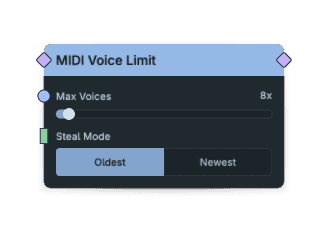
Midi Voice Limit Controls.
5.2.7. Echo and repeat notes
MIDI Delay echoes notes as MIDI, so the instrument plays each repeat with its own envelope. The MIDI Ratchet node turns each note into a fast burst for rolls and fills. Both can follow tempo. See Sync to tempo.
5.2.8. Accent a Euclidean rhythm
Euclidean Sequencer distributes Pulses across Steps. Accent Every selects every Nth pulse, counting from the first pulse before rotation. A value of 0 turns accents off, and 1 accents every pulse. For example, with Steps 8, Pulses 4 and Accent Every 2:
- Pulses fall on steps 0, 2, 4 and 6, and accents on steps 0 and 4.
- Rotation +1 moves the pulses to steps 1, 3, 5 and 7, and the accents to steps 1 and 5.
Direction can play forward, backward or ping-pong. Accents belong to pattern positions and stay attached when a position is revisited. Ping-pong does not repeat its endpoints: three steps play 0, 1, 2, 1, 0, 1, and the cycle continues. Steps, Pulses and Accent Every edits rebuild the pulse and accent masks together at the pattern-change boundary.
Ordinary pulses use Velocity or its connected input. Accented pulses use Accent or its connected input, with or without a Velocity cable. The Accent input changes velocity, not which pulses are accented. Each velocity is sampled at note onset and clamped to 0–127; velocity 0 emits no note-on. With Accent Every Off, Accent does nothing.
5.2.9. Generate MIDI from signals
MIDI Encode turns pitch and gate signals into notes. The CC Emit node turns a 0–1 control signal into controller messages, so an LFO or envelope can move a parameter on external gear.
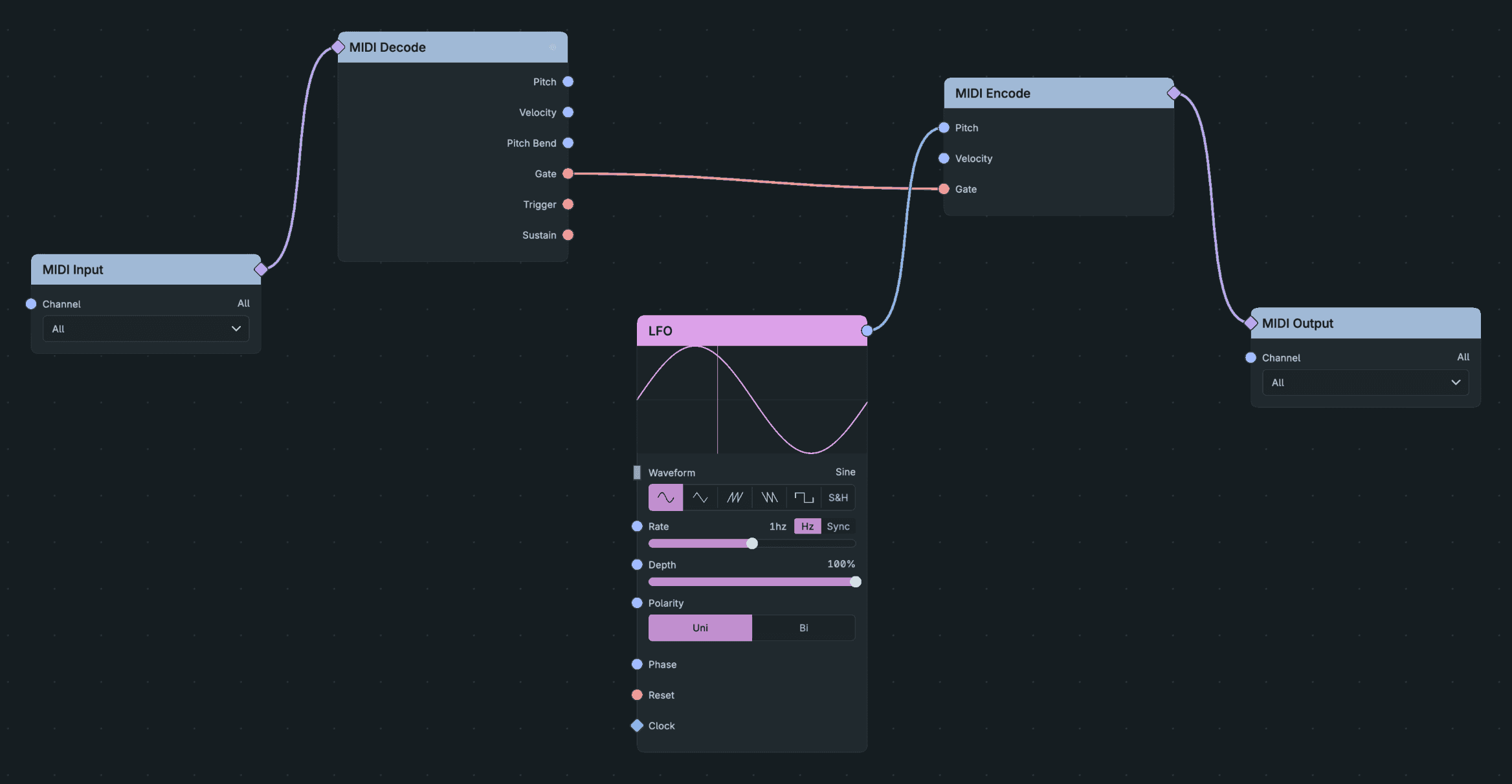
Encode Pitch And Gate.
To turn MIDI into signals, use MIDI Decode for pitch, gate, velocity, sustain and bend, and CC Extractor for controllers. See Signal kinds and units.
5.2.10. Find where a chain goes wrong
Put a Monitor inline before and after the node you suspect. It shows the notes that pass and names the chord. See Inspecting signals. For stuck notes, see Notes keep sounding.
Inspect A Midi Route.